Ứng dụng cho Windows 8, "mỏ vàng" mới của dân lập trình
Thứ sáu 29/06/2012 14:30
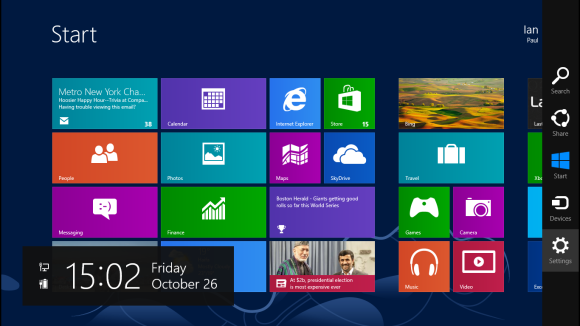
Hệ điều hành Windows 8 của Microsoft đang là tâm điểm chú ý của nhiều tín đồ công nghệ trên toàn thế giới. Windows 8 được kỳ vọng có thể đáp ứng được đầy đủ nhu cầu công việc, từ những người có kiến thức cơ bản đến chuyên sâu về máy tính.
Có vẻ sự nhợt nhạt của Windows Phone trong phân khúc hệ điều hành dành cho thiết bị di động (điện thoại thông minh & máy tính bảng) khiến Microsoft không thể hài lòng. Vì thế Windows 8 được được xem là con "át chủ bài" của hãng này, giúp lấy lại vị thế của mình trong phân khúc mà Apple iOS và Google Android đang chiếm thế thượng phong. Windows 8 có thể hoạt động đa nền tảng, trên các bộ máy tính thông thường (PC), cũng như các thiết bị sử dụng vi xử lý ARM như smartphone hoặc máy tính bảng. Điều này cho thấy Windows 8 có thể làm nên cuộc cách mạng trong lĩnh vực hệ điều hành, xóa nhòa khoảng cách giữa PC, smartphone và tablet.
Với nhiều sự tiến bộ mang tính đột phá, Windows 8 được hứa hẹn là đầy tiềm năng trong thời gian ngắn sắp tới. Vì thế đây được xem như mỏ vàng dành cho các lập trình viên. Từ lâu, Windows đã trở thành hệ điều hành phổ biến nhất thế giới với một lượng người dùng cực lớn. Nay với khả năng hoạt động đa nền tảng, đồng nghĩa với việc sẽ có hàng triệu thậm chí hàng tỷ khách hàng tiềm năng có thể sử dụng ứng dụng của bạn.
Ngày 28/06/2012 Microsoft đã tổ chức buổi hội thảo xây dựng ứng dụng Windows 8 Metro Style. Tại buổi hội thảo này, Microsoft đã có buổi giới thiệu Windows 8 với các lập trình viên, cũng như hướng dẫn cơ bản các bước để lập trình trên hệ điều hành này. Buổi hội thảo gồm các nội dung:
- Thiết kế & phát triển ứng dụng theo phong cách Metro trên Windows 8 - do anh Frank Nguyễn hướng dẫn (Slide tài liệu bài giảng bên dưới).
- Hướng dẫn thực hành thiết kế ứng dụng trên Windows 8 (giới thiệu các công cụ lập trình, ngôn ngữ lập trình và thực hành lập trình ứng dụng) - do anh Toàn Huỳnh hướng dẫn.
- Hướng dẫn lập trình phù hợp với phần cứng (với các thiết bị có camera, chạm (touch), âm thanh, video,...) - anh Toàn Huỳnh hướng dẫn.
- Thủ thuật giúp ứng dụng tiện dụng hơn, bắt mắt hơn với Tiles và thông báo (Notification) - do anh Ed Quek hướng dẫn.
- Giới thiệu Windows store (chợ ứng dụng trên Windows 8) và cơ hội kiếm tiền với chợ ứng dụng này - do anh Ed Quek hướng dẫn.
Tất cả slide và tài liệu hướng dẫn của các diễn giả trên có thể được tải về theo link bên dưới:
Rất nhiều trường hợp các bạn quên mất mật khẩu hoặc bị ai đó change mất.Nhiều bạn thấy vậy là cài lại win khiến dữ liệu bị mất.Để khắc phục những sự cố đó các bạn nên gỡ bỏ mật khẩu là tốt nhất.Sau đây là bài viết hướng dẫn cách phá mật khẩu winxp và win 7bằng công cụ Active Password Changer 3.0 for DOS.
Trong Hiren's Boot CD 10.5 này có 2 công cụ để phá mật khẩu đăng nhập Windows 7 đó là Offline NT/2000/XP/Vista/7 Password Changer và Active Password Changer 3.0.420.
Nhưng khi mình thử nghiệm với Offline NT/2000/XP/Vista/7 Password Changer thì chương trình chạy một lúc đứng im, không chạy được nữa nên mình đành dùng qua công cụ Active Password Changer.
Sau đây là hướng dẫn chi tiết phá pass Windows 7 bằng hình ảnh: Dùng Hiren's Boot CD 10.5, sau khi cho Hiren's Boot CD vào, khởi động lại máy và chọn chế độ boot là CDROM thì màn hình boot xuất hiện. Bạn chọn Dos Programs.
Chọn Password & Registry Tool:
Chọn Active Password Changer 3.0.420 (NT/2000/XP/2003/Vista)
Để cho chương trình chạy, đến khi xuất hiện cái bảng này thì bạn nhấn Enter để chọn YES.
Lựa chọn để chương trình tìm Password Windows nằm trong MS SAM Database. Bạn chọn [2] (hoặc có thể chọn [1] nếu bạn đã biết partitiob chứa windows) và nhấn Enter
Đợi cho chương trình tìm MS SAM Database, sau khi tìm thành công, nó sẽ xuất hiện kết quả tìm kiếm. Bạn nhấn Enter để tiếp tục.
Bạn nhập số tương ứng với tên tài khoản đăng nhập Windows 7 của bạn mà bạn lỡ quên password. Sau đó nhấn Enter.
Mặc định chương trình sẽ chọn dùm bạn 2 dòng Password Never Expires và Clear this User's Password. Nhiệm vụ của bạn là nhấn Y để lưu thay đổi và thoát chương trình.
Rút đĩa Hiren's Boot CD ra và khởi động lại máy, kết quả thật bất ngờ, Windows đã tự động Login vào thẳng luôn, không yêu cầu đăng nhập Password nữa.
Nếu bạn muốn thay đổi lại Password thì bạn vào Control Panel và chỉnh sửa lại User Accounts. Nguồn:KTV
After two public beta releases and more than 1.24 billion hours of pre-release usage time worldwide, Windows 8 is finally here. The latest version of Windows heralds a new era for the world’s most popular operating system, which now includes a touchable interface dubbed the Modern UI.
Windows 8 also brings some welcome (if more pedestrian) improvements to Windows, including power-user tools such as an overhauled Windows Explorer, better peripheral discovery, and easier back-up and restore features.
Love it or hate it, Windows 8 is here to stay. So whether you’re contemplating an upgrade, just installed the new OS, or plan on picking up a new Windows 8 device sometime soon, here are nine nuggets of information that should ease your upgrading transition.
Getting Windows 8
At 12:01 local time Friday, Microsoft made Windows 8 available for download all across the globe following a big launch Thursday in New York City.
Upgrading to Windows 8
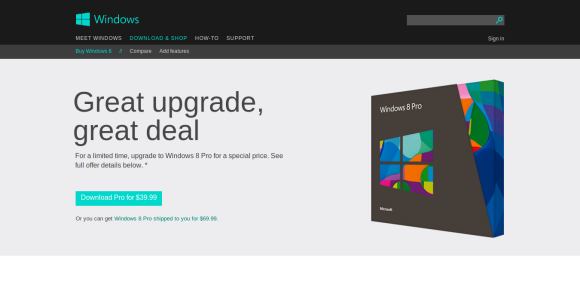
If you have a computer you’d like to upgrade to Windows 8, there are several options depending on your situation. If you purchased a PC after June 2, you can upgrade to Windows 8 for $15. Anyone else running Windows 7, Vista, or XP can upgrade for $40 --just make sure your PC has the specs to handle the new OS.
Microsoft said Thursday that more than 1,000 PCs, including tablets designed for Windows 8, will be available.
Acer tablet with Windows 8 installed
If you’re in the market for a new PC or tablet, PCWorld has details of many of those Windows 8 devices, including tablets from Acer, Asus, and Microsoft; Ultrabooks from Dell,Gigabyte, and Lenovo, a quirky all-in-one from Sony, and even regular desktops from computer makers such as Hewlett-Packard.
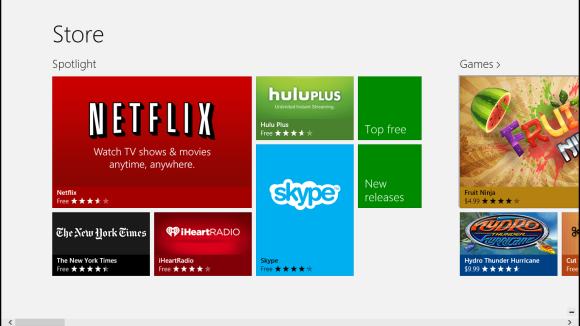
The final version of the Windows Store is open for business when you use a non-preview version of Windows 8. At launch, the Windows Store has a fairly good selection of apps, but no real surprises.
Windows Store interface
During the Windows 8 kickoff, Microsoft Windows chief Steven Sinofsky said the Windows Store at launch would have more apps than any other competing app store did during their respective launches.
When I heard Sinofsky’s comments, it sounded to me like he was finding a polite way to say, “We don’t have that many apps.” And that seems to be exactly the case.
More apps may come online in the coming weeks but, right now, there’s not a whole lot to get excited about. There are some nice apps to be sure: Angry Birds Space (currently the only Rovio title), Netflix, Skype, Hulu Plus, The New York Times, Slacker Radio, Urbanspoon, and Xbox SmartGlass. But notable missing titles include Facebook and Twitter, Dropbox, Pandora, Rdio, and Spotify.
You can work around Windows 8’s app gaps by using versions built for the Web or the traditional desktop (unless you are running Windows RT). But many third-party desktop apps are not touch friendly, which puts anyone running a new Intel-powered tablet such as the Acer Iconia Tab W700 at a disadvantage.
If Windows 8 tablets are going to compete against the iPad, Nexus 7, and the Kindle Fire HD, the Windows Store needs more apps for the Modern UI, and it needs big-name apps like the ones mentioned above.
If you’re not sure where to start in the Windows Store, check out PCWorld’s take on the 10 Windows 8 apps you should download first.
Choose your browser
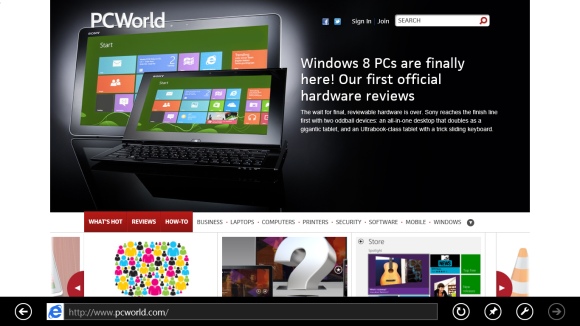
After you get Windows 8 up and running, there are three browsers you can choose from that include versions for both the Modern UI and the traditional desktop: Chrome, Firefox, or Internet Explorer.
Internet Explorer in Windows 8
Internet Explorer runs straight out of the box so if IE is your preferred browser, you don’t have to do anything. If you’d like to run Chrome, you can download it normally from Google and, if you choose it as your default browser, it will be available in the Modern UI as well as the desktop.
If you’d like to run Firefox in both UIs, you can try the Windows 8 preview version available from Mozilla. Note that only your current default browser can run in the Modern UI. In my tests, if you selected a non-Modern UI browser as your default such as Opera or the current stable version of Firefox, that will turn off the Modern UI version of Internet Explorer.
Windows 8 vs. Windows RT
There are two versions of Windows 8 to choose from. Which one you get depends on the device you intend to buy.
Windows Surface tablet
If you purchase a new Windows tablet with an ARM processor, then you get Windows RT. If you don’t know what an ARM processor is, look for tablets with processors from Nvidia or Qualcomm: those are RT tablets.
The difference when you buy an RT tablet is that it is not capable of running legacy Windows apps, even though an RT tablet includes the traditional desktop interface. An RT tablet can only run downloadable Modern UI apps from the Windows Store.
You cannot download Windows 7 versions of AIM, Dropbox, Skype, or Spotify. If it’s not a Modern UI app from the Windows Store, then you can’t use it on Windows RT.
If you don’t mind being restricted to the Windows Store, you should be able to pick up a Windows RT tablet for a good price. Microsoft on Thursday said there would be someWindows RT devices priced as low as $300.
If you have a Windows 8 device with an Intel or AMD processor, including old Windows PCs, you can run any app from the Windows Store and pretty much any program written for Windows 7.
Don’t forget to right-click
Because apps in the new Modern UI are fairly minimalistic, a lot of functionality that used to be available at the click of the button such as preferences, save, and upload are hidden.
Windows 8 Menu Bar
There are two ways in Windows 8 where you can typically access this functionality from a PC. One is by right-clicking. This will immediately call up a menu bar at the bottom of the screen with a few options.
For settings, you have to go over to the new Charms Bar on the right side of the screen and click the settings cog. This will show you settings for the app currently running on screen. When you click settings from the traditional desktop or the Start Screen, you access settings for your system.
If you’re a regular Windows user who’s never seen Windows 8 before, you are in for a shock, because the Start button is gone from the traditional desktop. Don’t panic.
Windows 8 Charms Bar
To get back to the Start screen and access a list of apps, you can either hit the Windows key on your keyboard or hover your cursor in the lower-left corner and wait for a start icon to show up and then click it. If you do the same hover action on the right side of your screen, it will reveal the Charms Bar.
Microsoft says there should be little pain when trying to connect old peripherals such as printers, keyboards, mice, and cameras to your new Windows 8 device.
Windows RT should also work seamlessly with PC accessories, according to Microsoft. The company said Windows RT is compatible with more than 420 million existing PC peripherals. In my brief tests, I found it was extremely easy to get my Canon MX340 all-in-one printer to work in Windows 8, but your mileage may vary.
If you can’t stand Windows 8 and want to stay where you are with Windows 7, go right ahead. Microsoft will continue to support Windows 7 with security and other important updates until 2020.
If you’re in the market for a new Windows 7 PC, computer makers should continue selling Windows 7 PCs until at least 2014. It’s not clear how many manufacturers will continue to offer Windows 7, but Dell has already said it would.
On top of all that, the licensing terms for PCs running Windows 8 Pro include the right to downgrade to Windows 7. It’s a new era for Microsoft, but if you’re not ready to get onboard yet, feel free to stick with Windows 7 for now.
For the rest of you, welcome to the new, touch-friendly era of Windows.
1.Win8 được thiết kế dành riêng cho các thiết bị chạm.
Theo đó các thiết bị sử dụng Win8 là các máy tính bảng. Win8 với giao diện góc cạnh trơn trượt thích hợp cho các thao tác của ngón tay. Các trình đơn tương tự như các loại điện thoại cảm ứng. Do đó, người dùng cảm thấy thích thú khi dùng ngón tay hơn là sử dụng chuột hay bàn phím cơ. Đôi khi người ta cảm thấy khó chịu khi dùng chuột!~@@
2.Win7 là thích hợp nhất cho laptop và PC.
Không có lý do gì phải đổi từ win7 sang win8 khi mà thiết bị bạn đang sử dụng và hệ điều hành đang chạy trên nó là phù hợp nhất với nhau và với nhu cầu của bạn?
3.Đã đến lúc mua một thiết bị mới!
Laptop già cỗi yêu quý của bạn đã bao nhiêu tuổi? Có lẽ hãy cất nó vào kho cùng với một thời ngang dọc của bạn và nó rồi!?
4. Win8 hoàn toàn mới và bạn phải tốn thời gian học cách sử dụng lại từ đầu
Bạn lay hoay không biết trò chơi bạn ưa thích nằm ở đâu? Những trục trặc nhỏ bạn có thể giải quyết nhanh chóng trước đây bây giờ bạn phải mò mẫm mất thời gian, rốt cục rồi phải nhờ người khác tới sữa dùm. Đôi khi bạn mở một chương trình rồi bạn không biết làm sao để tắt nó? ~!@!@
5. Mình đã cài Win8 trên cái laptop của mình và thật sự không hợp.


 Thế Vinh